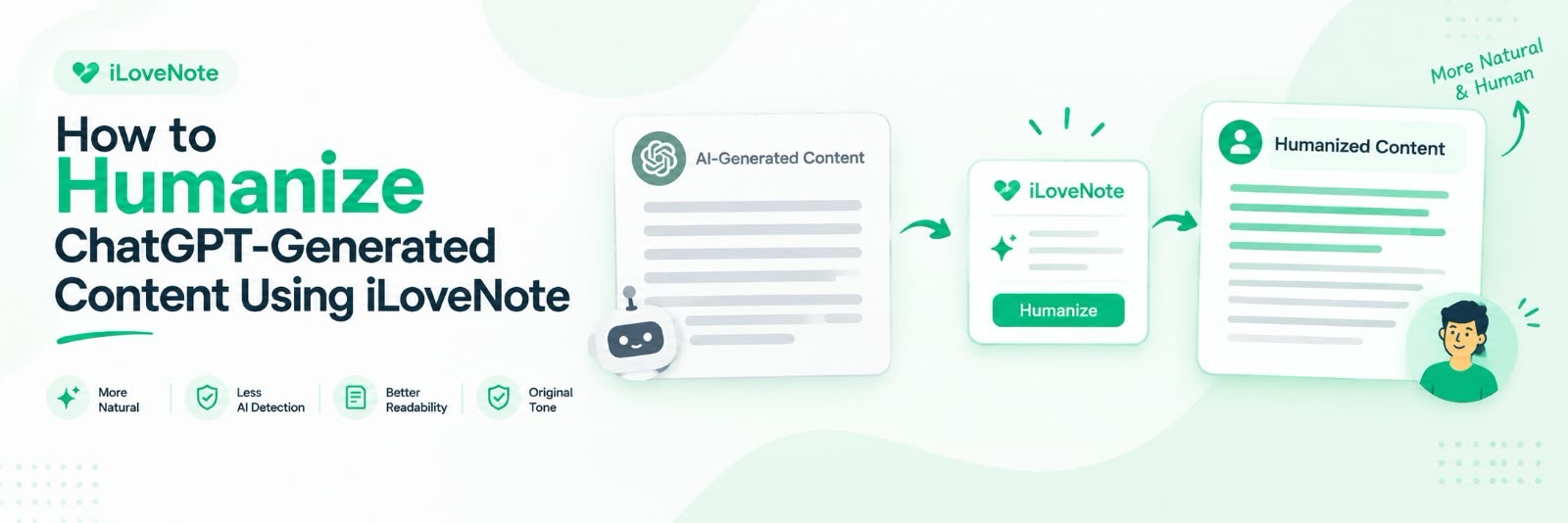
ChatGPT content has a certain feel to it. The sentence structure looks repetitive, and the tone is too polished. This makes content sound robotic, which AI detectors may flag and readers may also notice.
ILoveNote, an online platform offering several useful writing tools, has a dedicated Humanize AI Text tool built for this problem. You just put your ChatGPT output in it, and it rewrites the wording and sentence structure so that it sounds more natural. It makes it more like a person actually wrote it and the original meaning remains intact.
In this blog, we’ll walk you through how to actually use this tool to humanize ChatGPT content properly.
Why ChatGPT Content Needs Humanizing
ChatGPT can generate a lot of technically correct content in a short amount of time. But most of the time, it tends to follow certain patterns. You can notice the following characteristics in the content:
Very structured sentences.
Repeated phrasing.
A tone that sounds a bit too polished and even throughout.
No natural ups and downs the way a human actually writes.
This becomes a problem in a few situations. Some platforms now check content through AI detectors. The content that reads too uniform or robotic often gets flagged. Readers also notice this and doubt the originality of content. So, AI-generated content fails to build trust, and readers leave as soon as they realize it. Humanizing this content can help make it sound more natural and less repetitive.
Humanizing ChatGPT Content with ILoveNote
Here are the steps you can take to make GPT-generated content sound more natural with ILoveNote
1) Copy ChatGPT Content and Remove Markdown
When you copy content directly from ChatGPT, it usually has markdown formatting attached. There may be asterisks for bold text, hash symbols for headings, or dashes for bullet points.
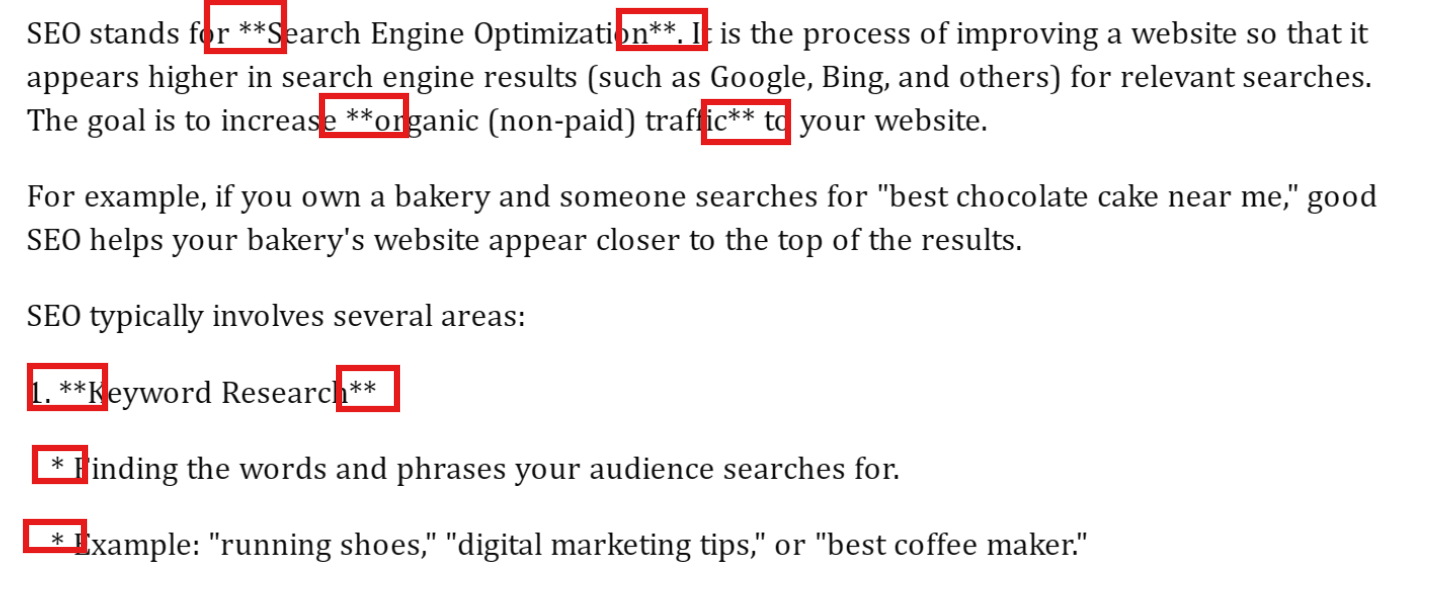
Copying and pasting this content directly into the humanizer tool can cause issues. It may confuse the tool while processing. A better way is to paste the content into a text editor first and manually strip this markdown before humanizing it.
2) Choose the Required Humanizing Mode
iLoveNote offers you two modes to choose from. One is 'Basic,' and the other is 'Advanced'. The right one depends on how much rework the content actually needs.
Basic mode makes lighter changes. It tweaks wording and sentence structure just enough to take the edge off the robotic tone. It keeps the content fairly close to the original. This is handy when the ChatGPT content is somewhat easier to understand and just needs a little bit of refinement before use.
The advanced mode takes it one step further and restructures sentences more sharply. It varies the tone and phrasing much more throughout the text. This is useful for content that reads very generic, has heavy patterns, or has a stiff tone.
3) Click Humanize and Let It Process
Once the mode is selected, paste the content in the specified box. If you have used an offline editor, like MS Word or Notepad, you can upload the file by clicking on the “Upload File” button.
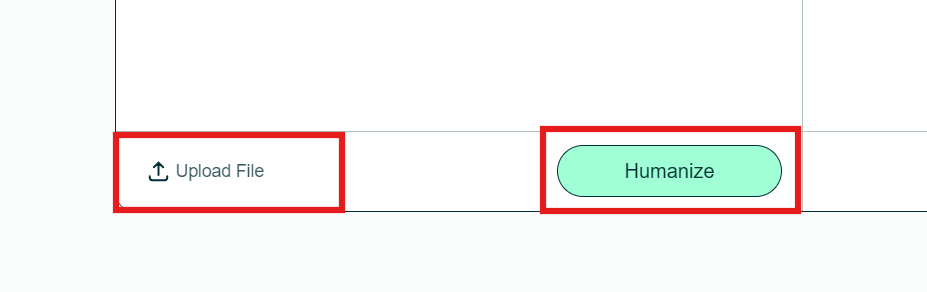
After that, click the "Humanize" button and let the tool do its work. This usually takes a few seconds, sometimes a little longer depending on how much text is being processed.
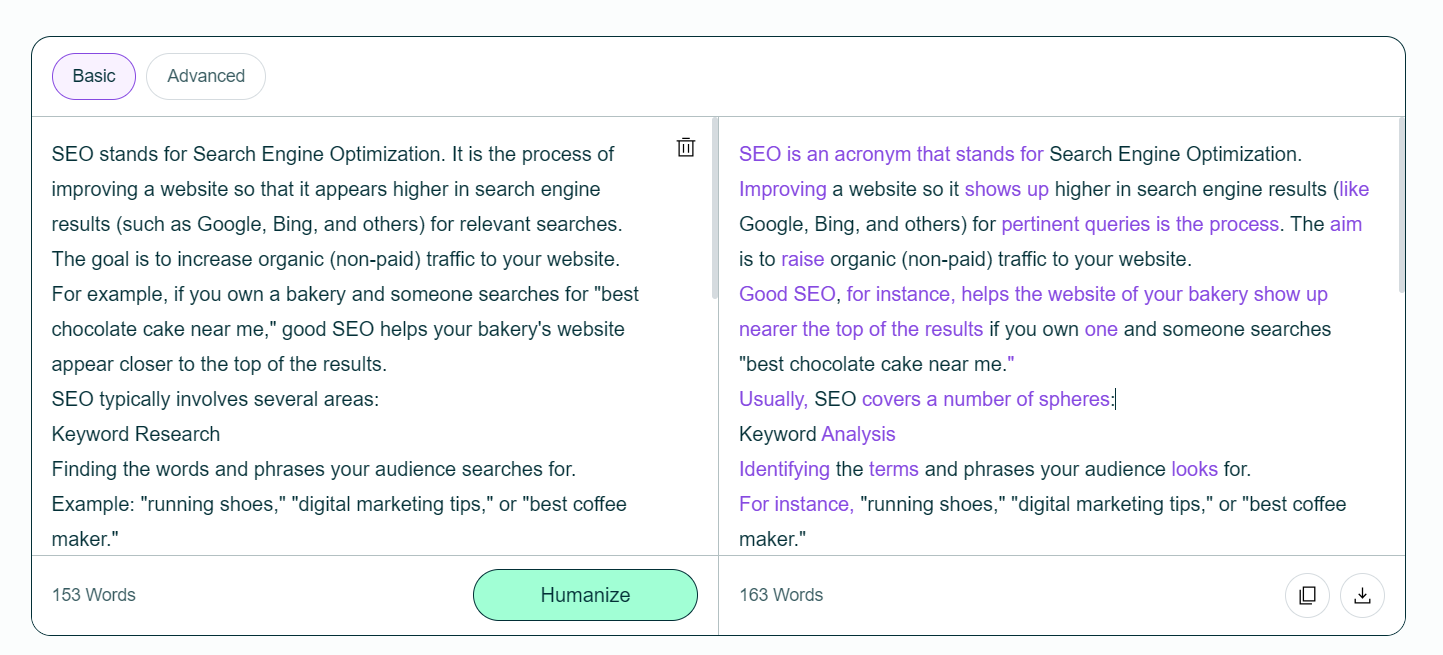
During this time, the tool goes through the content, reworking sentence structure, adjusting word choice, and breaking up repetitive patterns that make the original text feel AI generated. No need to do anything on your end during this step. Just wait for it to finish processing before checking the output.
Once done, the humanized version shows up in the output box on the right side of your input.
4) Review the Output Against the Original Meaning
The output will show the replaced words and phrases in a different color than the rest of the text after the tool has finished processing. Then you can easily see exactly what has been changed instead of having to manually compare it line by line.
Carefully read through this output and check that the actual meaning has not changed anywhere. If you come across a sentence that sounds a bit awkward, simply click on the colored word or phrase, and a “Rephrase” button will appear right there.
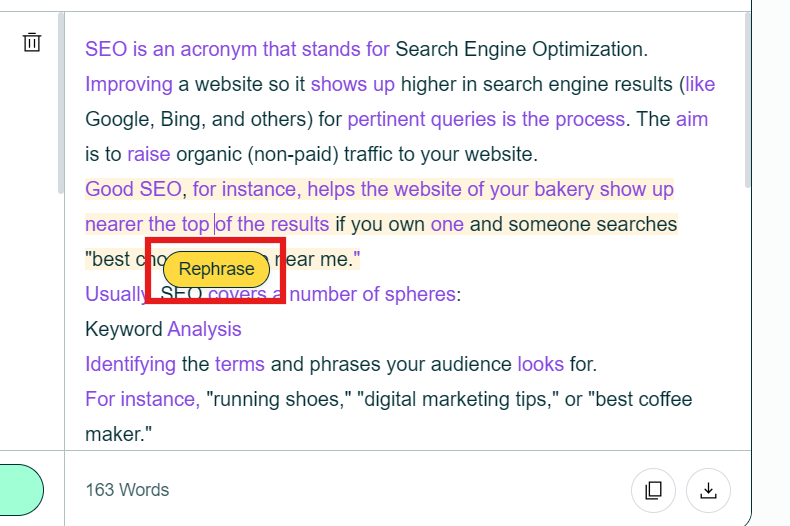
Click it, and the tool gives you a bunch of different polished versions for that exact sentence. Pick which one flows best and fits in with the rest of the content.
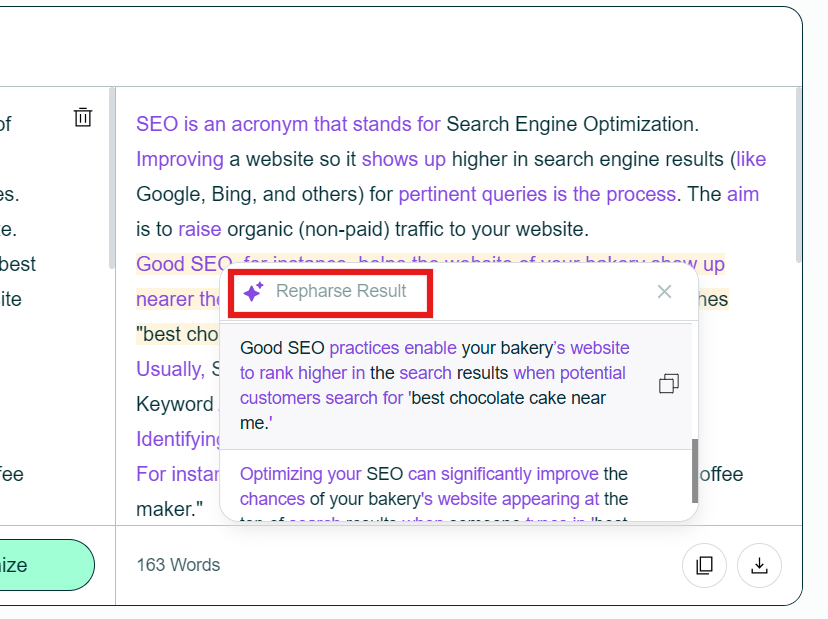
This step is important because even a good humanizing pass can sometimes produce a line that sounds a little weird. This rephrase option allows you to fix just that one part without having to rehumanize the whole content.
5) Run It Through an AI Detector to Confirm the Result
After you have fixed any awkward lines and polished the final output manually, it's a good idea to run the final text through a reputable AI detector. It will help you make sure the humanizing actually did what it was supposed to. This is a real check, not just a guess that the content reads as human enough after a quick read-through. Here is the result of the AI detector for the content we used for demo purposes.
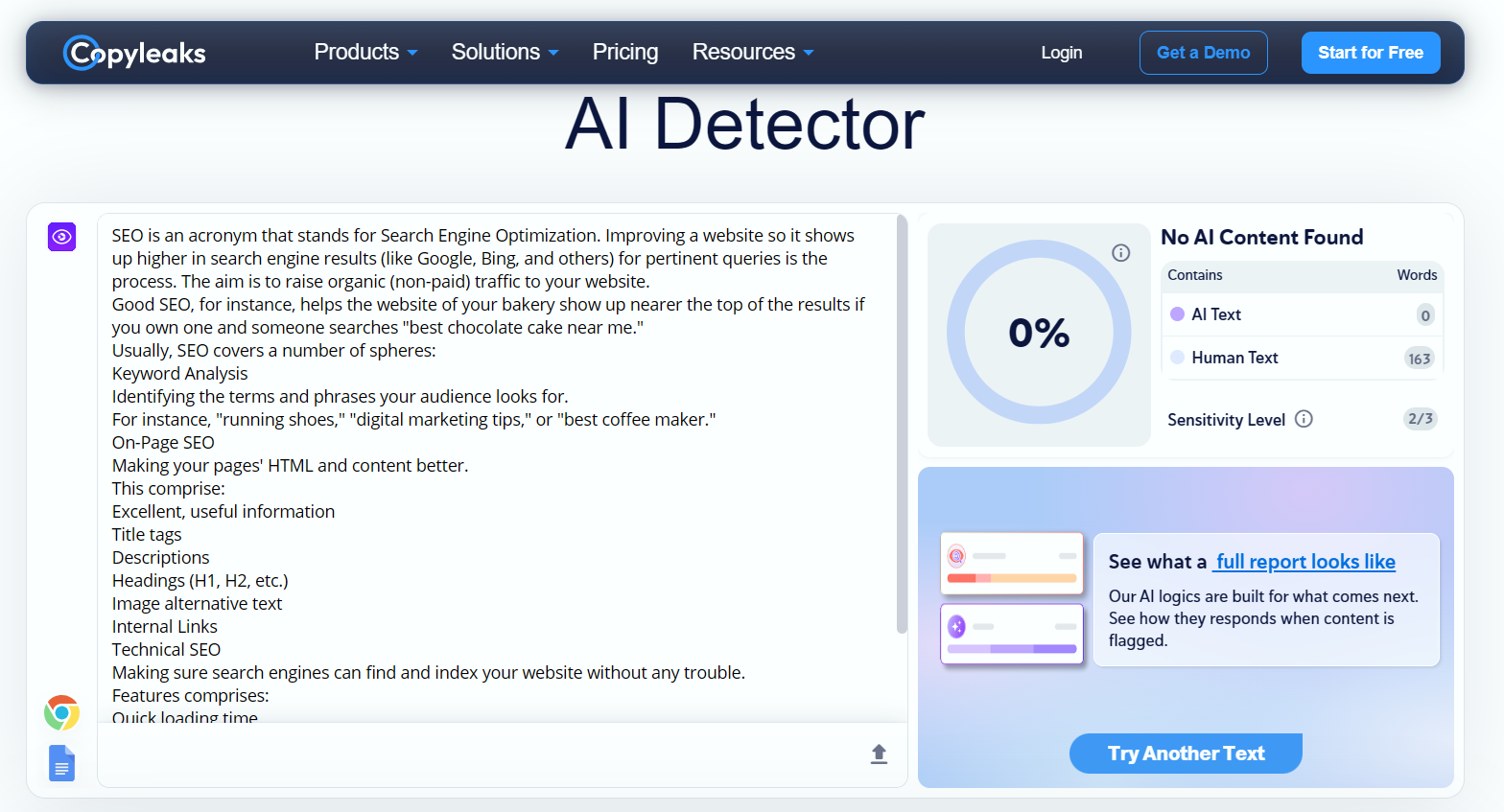
If the result still has a high AI percentage in some places, you can run those specific parts through the humanizer again or fix them manually using the rephrase option mentioned above.
This step adds a proper confirmation before actually using content anywhere, like a blog post, assignment, or any piece where sounding genuinely human-written matters.
Final Words
So this is how you can humanize ChatGPT generated content using iLoveNote. The tool works well for smoothing out stiff and robotic tone that AI content often has.
Just use it the right way, though. Don't use it to trick anyone by generating low quality, inaccurate content and just running it through a humanizer to bypass AI detectors, that defeats the actual purpose of writing something useful in the first place.
For content to feel genuinely human, add your own personal touch too. Real life examples, small anecdotes, and your own experience with the topic make it more genuine. Also verify any stats or facts the AI content includes before actually publishing it. A humanizer smooths out the tone, but the real human element still has to come from you.